
Choosing a local AI model starts with two questions: what do you want it to do, and how much usable memory does your computer have? A model that downloads successfully may still run slowly, exhaust memory, or give poor answers on your task.
This guide helps you choose a first text model for Ollama or LM Studio. Image and video workflows have different requirements. The capacity examples below are conservative starting suggestions to investigate, not hardware benchmarks or guarantees that a particular model will fit.
You will finish with a record of your hardware, one suitable model candidate, and a repeatable quality and performance check. Use the downloadable model-selection worksheet to record your results.
1. Decide what a useful result looks like
Pick one small, representative task: summarizing support notes, extracting dates from a document, explaining a code snippet, or drafting a reply in your language. Write down what would make an answer unacceptable. For extraction, one invented deadline might matter more than fluent wording.
Choose a chat or instruction-tuned model for following requests. An embedding model produces numerical vectors for retrieval and is not a chat model. A vision task needs a model and runtime that accept images; a text-only model cannot inspect a picture simply because you attached it to an application.
For each candidate, read its model card: intended use, supported languages and inputs, license, model family, and runtime requirements. “Open weights” does not automatically mean unrestricted commercial use.
2. Find your hardware and available memory
Record your operating system, processor architecture, installed memory, free disk space, and exact GPU model. Check available memory with your usual applications open as well as with them closed.
| Platform | Where to look | Useful checks |
|---|---|---|
| Windows | Settings → System → About; Task Manager → Performance | Installed RAM, x64 or ARM, dedicated GPU memory, memory currently in use |
| macOS | About This Mac; Activity Monitor → Memory | Apple silicon or Intel, installed unified memory, memory pressure and swap |
| Linux | System information and your GPU tools | CPU architecture, available RAM, GPU model and driver, free disk space |
Optional read-only commands:
Windows PowerShell
Get-CimInstance Win32_ComputerSystem |
  Select-Object SystemType, @{Name='RAM_GiB';Expression={[math]::Round($_.TotalPhysicalMemory / 1GB, 1)}}
Get-CimInstance Win32_Processor | Select-Object Name
macOS Terminal
system_profiler SPHardwareDataType SPDisplaysDataTypeLinux terminal
uname -m
lscpu
free -h
df -h .
For an NVIDIA GPU with its driver tools installed, nvidia-smi reports the GPU, driver, and memory use. A missing command alone does not establish that the machine has no GPU.
RAM, VRAM, and unified memory
- System RAM holds applications and can hold model data for CPU inference or CPU/GPU offloading.
- Dedicated VRAM is memory on a discrete GPU. Windows’ shared GPU-memory allowance is not additional dedicated VRAM.
- Unified memory, such as on Apple silicon, is shared by CPU, GPU, the operating system, and applications. A 16 GB Mac does not have 16 GB available exclusively for a model.
- Disk space stores downloads, model variants, and caches. Extra disk space does not replace fast working memory. Heavy swapping can make a setup impractical.
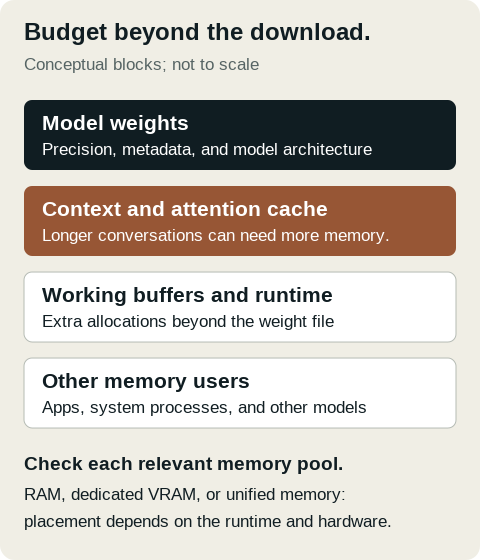
Keep headroom for your operating system, browser, inference runtime, and other work. If you also run document extraction or embeddings, include those processes in the budget.
3. Check runtime support before choosing a large download
Memory capacity and hardware compatibility are separate checks. GPU acceleration depends on the exact GPU, operating system, driver, and runtime. Ollama documents different NVIDIA, AMD, Apple, and Vulkan paths; support is not identical on every platform. Check the current Ollama hardware matrix.
LM Studio has its own platform and CPU requirements. Check them before downloading; additional memory does not fix an incompatible application build.
A large amount of RAM does not make an unsupported GPU supported. CPU-only inference can still be useful for a small model, but measure its response time on your own task.
4. Estimate the model’s weight footprint
The parameter count describes the number of learned numerical values. Precision affects how much storage those values need. For an idealized dense model:
Raw weight bytes ≈ number of parameters × bits per parameter ÷ 8
GiB              = bytes ÷ 1,073,741,824

8 billion parameters at 4 bits:
8,000,000,000 × 4 ÷ 8 = 4,000,000,000 bytes ≈ 3.73 GiB| Parameter count | Idealized 4-bit weights | Idealized 16-bit weights |
|---|---|---|
| 1B | 0.47 GiB | 1.86 GiB |
| 4B | 1.86 GiB | 7.45 GiB |
| 8B | 3.73 GiB | 14.90 GiB |
| 14B | 6.52 GiB | 26.08 GiB |
| 32B | 14.90 GiB | 59.60 GiB |
These are arithmetic examples for raw weights, not total model-file sizes or running-memory requirements. Real quantization stores metadata and may keep some tensors at higher precision. Inference also needs working buffers and attention cache. See model parameters and quantization for the underlying concepts.
For example, the reviewed Ollama entry for qwen3:4b lists a roughly 2.5 GB download using Q4_K_M. That is an inspectable file-size example, not a claim that 2.5 GB of free memory is enough to run it. Model details
A Mixture of Experts model’s active parameter count describes selected computation. It does not mean all other expert weights can be ignored when planning storage and memory. Check the total model and the runtime’s loading behavior. MoE explained
5. Allow for context and other running models
The context window holds the input and conversation material the model can use. A model’s advertised maximum is not necessarily the amount allocated by your runtime. Longer context increases memory needs, and simultaneous requests can add more load.
Start with a modest context, such as 4,096 tokens, for a short chat. Increase it only for a task that needs it and after checking the model’s supported limit and your memory use. Leave room for instructions, history, retrieved documents, and the answer; a 4,000-token document does not comfortably fit in a 4,096-token conversation budget.
With Ollama, ollama ps reports loaded models and their CPU/GPU placement; current versions also show allocated context. Check the running configuration rather than assuming a default. Context-length documentation
6. Pick a modest first candidate
These examples are planning suggestions, not measured fit or speed results. Actual memory use depends on architecture, quantization, context, runtime, and other applications.
| Example machine | Candidate to investigate first | Main constraint to watch |
|---|---|---|
| 8 GB system RAM, no supported GPU | A small instruction model around 1–3B with a supported 4-bit variant | Little spare RAM; keep context and background applications modest |
| 16 GB system or unified memory | A 3–4B model first; then investigate a 7–8B quantized model if measured headroom permits | Shared memory, CPU speed, or memory pressure |
| 8 GB dedicated VRAM plus sufficient system RAM | A 4B or 7–8B 4-bit model | Context cache and other GPU users can prevent full GPU placement |
| 16 GB dedicated VRAM plus sufficient system RAM | Start with a 7–8B model; investigate 12–14B 4-bit candidates | Actual file size and context allocation |
| 32 GB unified memory | Start with a 7–8B model; compare a larger quantized candidate only after measuring | The operating system and applications share the same memory pool |
Prefer one well-chosen model over downloading many variants at once. Compare two sizes from a similar family where possible. Bigger models, newer releases, and stronger benchmark scores do not settle which one meets your needs.
7. Run a short acceptance check
Use Ollama or LM Studio to install and load your candidate. With Ollama, a starting example is:
ollama pull qwen3:4b
ollama run qwen3:4b
In the interactive session, set a modest context with /set parameter num_ctx 4096. Ask your test question, then inspect ollama ps in a second terminal. Use /bye to leave chat and ollama stop qwen3:4b to unload the model when finished. These commands assume you already installed Ollama. Ollama FAQ
For either runtime, record:
- Exact setup: app version, model identifier and quantization, context, and acceleration settings.
- Cold start: time to load and answer the first request.
- Warm response: time to answer the same type of request once loaded.
- Memory: peak system/GPU use, memory pressure, and whether substantial swapping occurs.
- Quality: correct facts, missing details, invented details, and required corrections across at least five realistic examples.
Keep prompts, output limits, and settings consistent when comparing candidates. Repeat a run rather than treating a single timing as a benchmark. A fast answer with an incorrect amount fails the task.
Use the fictional document practice files for a repeatable extraction task. The answer checklist lets you score correctness without relying on a model’s own confidence.
If the model does not work well
| Symptom | Next check or change |
|---|---|
| It fails to load or runs out of memory | Unload unused models; reduce context; try a smaller model or supported lower-precision variant |
| It loads but replies very slowly | Check CPU/GPU placement, background work, memory pressure, and cold-start time separately |
| Short chat works but documents fail | Recheck context allocation, document length, and memory used by embeddings or extraction |
| It is fast but gives wrong answers | Compare a different model on the same examples; inspect task instructions and supplied evidence |
| A GPU is present but unused | Verify exact runtime support and drivers; inspect logs before changing configuration |
Change one variable at a time and rerun the same acceptance check. Keep the smallest setup that meets your quality and response-time requirements. Before buying hardware, validate those requirements with an actual model and workload; the table above is a starting point for testing.
Your completion check
You can name your usable memory pool, explain the difference between weight size and running memory, load a compatible model, and show how it performed on your test examples. Keep your completed worksheet so later model or runtime updates can be compared with the same baseline.